
We created this guide after seeing countless unresolved complaints and troubleshooting threads across online forums, business communities, and support groups. Most of these issues have clear root causes, but only if you know where to look. This article brings together the most common VoIP problems businesses face in 2026, explains what’s happening under the hood, and gives you actionable solutions to fix them.

In this article:

Main Questions About VoIP Most Common Problems

  • The biggest disadvantage of VoIP is its reliance on a stable internet connection. Without enough bandwidth or if the network experiences jitter, latency, or packet loss, call quality can suffer. Additionally, VoIP systems can be sensitive to power outages or poorly configured routers

  • Start by identifying the type of problem—audio quality, dropped calls, or devices not ringing. Common fixes include using wired connections, enabling QoS on routers, disabling SIP ALG, updating firmware, and verifying correct NAT/firewall settings. Many issues are tied to network configuration rather than the VoIP system itself.

  • The most common causes are jitter and packet loss, often from poor WiFi, overloaded routers, or lack of Quality of Service (QoS) settings. Other factors may include outdated VoIP apps, faulty headsets or mics, or mismatched audio codecs.

Quick Overview: Common VoIP Problems

Before diving into detailed troubleshooting, here’s a snapshot of the most frequent VoIP problems businesses face, and what’s usually behind them:

VoIP ProblemLikely Cause
Choppy or Robotic AudioJitter, packet loss, poor internet connection, no QoS
Calls Dropping After 30–60 SecondsNAT/firewall timeouts, SIP ALG interference, incorrect session handling
Echo or Background NoisePoor device acoustics, incorrect gain settings, cheap headsets, network jitter
No Audio or One-Way AudioNAT traversal issues, blocked RTP ports, wrong IP in SDP headers
Phones Not RingingMisconfigured call routing, registration timeout, sleep mode on mobile devices
Missed Calls on VoIP AppsBattery optimizations, background app restrictions, poor LTE/WiFi switching
Devices Going Offline RandomlySIP registration issues, power saving, DHCP lease conflicts
DTMF/IVR Not WorkingMismatched DTMF methods (RFC2833, in-band, SIP INFO), codec issues
Ghost Calls / Unauthorized AccessPort scanning, exposed SIP endpoints, lack of IP filtering or auth

This table gives you a fast reference to spot and categorize issues before jumping into detailed diagnostics. Each of these problems is covered step-by-step in the sections that follow.

VoIP Call Quality Problems

When people complain about VoIP, it almost always comes down to one thing: call quality. You can hear choppy audio, delays, lack of audio, or suddenly get disconnected during a conversation. These VoIP problems are frustrating, especially when they seem random or hard to reproduce.

Let’s break down what causes each of these and how to fix them.

Choppy, Robotic, or Delayed Audio

This happens when voices cut in and out, sound metallic or distorted, or there’s a noticeable delay in the conversation. These issues are often caused by jitter, packet loss, or latency: network conditions that disrupt how audio data is delivered. This is especially common on busy WiFi networks or when bandwidth is shared with video calls, file uploads, or streaming.

How to Fix It:

  • Use a wired Ethernet connection instead of WiFi whenever possible.

  • Enable Quality of Service (QoS) on your router to prioritize VoIP traffic.

  • Avoid overloading the network with other heavy-use apps during calls.

  • Check your internet speed and stability using VoIP-specific tests (look for jitter <30ms, packet loss <1%).

  • If using a softphone or app, close background apps that may hog CPU or bandwidth.

Dropped Calls (Especially After 30–60 Seconds)

When calls unexpectedly hang up, it often happens exactly 30 or 60 seconds into the conversation. This usually points to SIP session timeouts, often due to firewalls, NAT settings, or SIP ALG (Application Layer Gateway) interfering with signaling. The system thinks the call has failed and closes the session.

How to Fix It:

  • Disable SIP ALG in your router settings.

  • Ensure that NAT keep-alives are enabled on your VoIP phones or softphones.

  • Check your firewall rules to allow SIP and RTP traffic (usually UDP ports 5060 + RTP range).

  • If behind a PBX or SIP trunk, verify session timers and registration expiry settings are configured correctly.

Echo, Low Volume, and Noise

In this case, you hear your own voice echoed back, callers sound far away, or there’s a lot of static or background noise. This echo is usually a hardware or acoustic issue, often from using speakerphones or low-quality headsets. Low volume can stem from mic or gain settings. Background noise may come from open mics or a lack of noise suppression.

How to Fix It:

  • Use a headset or headphones to prevent audio from looping through speakers.

  • Avoid low-quality microphones or built-in laptop mics, especially in open environments.

  • Check device audio settings, mic levels, and automatic gain controls.

  • Enable echo cancellation or noise suppression if supported by your device or app.

  • If the echo is only on one side, the issue is usually with the other caller’s hardware.

Calls Connect, But There’s No Audio

The call goes through, both parties appear connected, but you can’t hear the other person. This is a classic NAT traversal issue, where signaling works but RTP (the media stream) can’t get through due to firewalls or incorrect port forwarding. One-way or no audio is a telltale sign of RTP blockage.

How to Fix It:

  • Make sure your firewall is open for RTP ports (typically UDP range like 10000–20000).

  • Avoid double NAT situations (e.g., modem + router both running NAT).

  • Check that your VoIP system uses consistent public IP information in SIP headers (use STUN or SIP-aware NAT).

  • Use SIP keep-alives or session timers to maintain the connection.

  • If using a hosted VoIP system, ask the provider for recommended port and NAT settings.

When Calls Don’t Ring: Routing and Device Issues

These VoIP problems often stem from call routing misconfigurations, mobile app background restrictions, or devices that silently deregister due to network instability.

Whether it’s phones in a ring group not responding, mobile softphones missing calls, or SIP devices going offline at random, the root cause usually lies in how devices connect and stay registered on the network.

Some Phones Don’t Ring

This is when calls are routed to a ring group or hunt group, but only some devices ring. Sometimes one user always gets the call while others are skipped. This is usually due to misconfigured call routing rules, out-of-date device registrations, or overlapping forwarding logic. Devices that are offline or incorrectly registered won’t ring, even if they’re included in the group.

How to Fix It:

  • Check that all devices in the hunt group are actively registered with the VoIP system.

  • Review routing logic or ring strategy (simultaneous vs round-robin vs sequential).

  • Make sure there are no forwarding loops or conditional call rules overriding group settings.

  • Ensure all user devices are using the correct extension or SIP credentials and are not logged out.

Missed Calls on Mobile Apps (Sleep, LTE/WiFi Switching)

These VoIP problems happen when calls to mobile VoIP apps don’t ring or get sent to voicemail. Mobile operating systems aggressively manage background apps to save battery. VoIP apps may be put to sleep, throttled, or lose connection during LTE/WiFi switching. Push notifications may also be delayed or dropped.

How to Fix It:

  • On iOS/Android, disable battery optimization or allow the app to run in the background.

  • Make sure push notifications are enabled and not restricted.

  • Avoid using VoIP apps over unstable public WiFi or weak LTE signals.

  • Use apps that support push-based registration to reconnect faster when idle.

  • Ensure your provider supports mobile-optimized SIP features (e.g., re-registration on network change).

Phones Randomly Deregister or Go Offline

This issue is when VoIP desk phones, adapters, or softphones appear online one moment and offline the next, causing missed calls and failed registrations. Frequent deregistration is often the result of unstable network conditions, DHCP lease conflicts, or power-saving features on routers or devices. It may also indicate issues with SIP keep-alives or firewalls dropping inactive sessions.

How to Fix It:

  • Ensure devices have static IPs or long DHCP lease times to avoid IP conflicts.

  • Use wired connections whenever possible for stability.

  • Check that SIP keep-alives are enabled on the device or PBX.

  • Avoid consumer-grade routers that drop idle UDP sessions or lack SIP support.

  • Update the device firmware and disable sleep or power-saving features where possible.

IVR & DTMF Issues

These are also really common VoIP problems. Interactive Voice Response (IVR) systems depend on DTMF tones (the keypress sounds you make when navigating a phone menu). But when the system doesn’t recognize your input, it can block callers from reaching support or completing tasks, causing frustration and inefficiency.

VoIP Most Common Issues in 2026 2 - Telxi

Callers press keys during an IVR menu (e.g., “Press 1 for sales”), but the system doesn’t respond or registers the wrong input.

This is typically due to a mismatch in how DTMF (Dual-Tone Multi-Frequency) tones are transmitted between the caller, carrier, and VoIP system. There are three common methods:

  • In-Band DTMF: Sends tones as audio signals during the call. It can be distorted by compression codecs like G.729, leading to misreads.

  • RFC2833 (Out-of-Band RTP): Sends DTMF as data in the RTP stream—more reliable and the most common standard for VoIP systems.

  • SIP INFO: Sends tones as part of the SIP signaling rather than RTP or audio. Less common but used in some systems.

If the sender and receiver aren’t using compatible DTMF methods, the IVR won’t detect key presses properly.

How to Fix It:

  • Verify that your VoIP provider, PBX, and endpoints use the same DTMF method—ideally, RFC2833.

  • Avoid using in-band DTMF with compressed codecs like G.729 or Opus; prefer G.711 for IVR-heavy calls.

  • If using SIP trunks, make sure DTMF relay settings are consistent between your PBX and trunk provider.

  • Test calls using multiple endpoints (desk phone, softphone, mobile app) to identify where the DTMF tones are failing.

  • For systems using SIP INFO, ensure support is enabled on both ends, or switch to RFC2833 if issues persist.

Network & Infrastructure Problems

Even with the best VoIP provider, your local network setup can make or break voice quality. Many persistent VoIP problems originate not from the phone system itself, but from weak routers, lack of traffic prioritization, reliance on WiFi, ISP limitations, or power outages that disrupt devices and SIP registrations.

Here are five of the most common infrastructure-related issues that affect VoIP performance:

Weak Routers/Switches / Consumer Hardware

Consumer-grade routers often can’t handle sustained VoIP traffic or properly manage SIP and RTP streams. They may drop idle sessions, misroute SIP packets, or lack support for VoIP-specific features like NAT traversal and SIP ALG configuration.

How to Fix It:

  • Replace consumer routers with VoIP-friendly business-class equipment that supports VLANs, QoS, and custom NAT/firewall rules.

  • If using managed switches, ensure ports are correctly configured and that traffic shaping doesn’t deprioritize voice.

  • Avoid devices with aggressive power-saving or automatic firmware updates that can cause intermittent dropouts.

No QoS & Competing Network Traffic

Call quality degrades when other users are uploading files, streaming, or running large downloads. Without Quality of Service (QoS) settings, your router treats VoIP traffic the same as anything else. When bandwidth is limited, voice packets get delayed or dropped.

How to Fix It:

  • Set up QoS on your router to prioritize VoIP traffic (typically SIP and RTP ports).

  • Tag VoIP traffic with DSCP (Differentiated Services Code Point) values like EF (Expedited Forwarding) for prioritization across networks.

  • Use VLANs to isolate voice traffic from data traffic if your network supports it.

  • Monitor bandwidth usage and consider upgrading internet plans or limiting non-essential apps during work hours.

WiFi vs Ethernet

Sometimes, WiFi can be inconsistent. It suffers from signal interference, weak coverage, and shared bandwidth, which leads to jitter and packet loss. Even small drops in WiFi quality can disrupt VoIP performance.

How to Fix It:

  • Whenever possible, use wired Ethernet connections for all VoIP endpoints—especially desk phones and softphones.

  • If WiFi is unavoidable, ensure strong signal coverage and avoid congested 2.4GHz bands.

  • Use enterprise-grade access points that support traffic shaping and QoS for VoIP.

  • Avoid placing VoIP phones or laptops near microwaves, cordless phones, or metal surfaces that cause interference.

CriteriaWiFiEthernet
StabilityVariable, prone to dropoutsHighly stable
LatencyHigher, especially on congested networksLow latency
Jitter/Packet LossCommon with weak signals or interferenceMinimal
SecuritySusceptible to interception if not encryptedMore secure, physical access required
Best Use CaseMobile apps, softphones in strong coverage areasDesk phones, call centers, critical roles

Internet Service Provider and WAN-Level Issues

Your Internet Service Provider (ISP) may be throttling VoIP traffic, experiencing congestion, or routing packets inefficiently. VoIP depends on consistent low-latency performance.

How to Fix It:

  • Run VoIP-specific speed and jitter tests regularly to monitor WAN performance.

  • Use tools like MTR or PingPlotter to trace call paths and spot where delays occur.

  • Consider upgrading to a business-class connection or switching to a VoIP-friendly ISP.

  • Use SIP trunk providers with smart routing and multiple upstream carriers to avoid single points of failure.

Power Failures & Redundancy Gaps

This happens when phones go offline during outages or router reboots, halting communication completely. The reason is that VoIP devices, switches, and routers rely on power. A single failure or power cycle can knock out entire phone systems unless properly backed up.

How to Fix It:

  • Install Uninterruptible Power Supplies (UPS) on routers, switches, and VoIP gateways.

  • Use PoE switches to provide both power and data to IP phones over a single cable.

  • Set up redundant internet connections or cellular failover for business-critical communications.

  • Ensure your VoIP platform supports failover routing or secondary SIP registration.

VoIP Security & Fraud Issues

VoIP systems are increasingly targeted by attackers because they expose open ports, use public internet transport, and sometimes lack the basic safeguards of legacy telephony. From toll fraud to unauthorized logins, a compromised system can rack up massive charges or expose sensitive data. These are serious VoIP problems.

Signs of Compromise (Unusual Call Logs, Ghost Calls)

This occurs when your system shows calls you didn’t make or your phones ring at odd hours with no one on the line. These are early signs of either unauthorized access or port scanning attempts.

Watch for:

  • Call logs showing calls to unexpected destinations, especially high-cost international zones.

  • Ghost calls (ringing with no inbound number)—usually from SIP scanners probing your system.

  • Rapid SIP registration attempts from unrecognized IPs.

  • Devices that appear unregistered or deregister frequently.

Hardening Steps (Passwords, 2FA, IP Filtering)

Prevention is key. Most VoIP fraud is opportunistic, so a few good security practices can stop it entirely.

How to protect your system:

  • Use strong SIP credentials: Avoid default usernames/passwords and enforce complexity.

  • Enable IP-based access control: Restrict who can register or connect to your VoIP system by IP.

  • Turn off unused ports and services: Disable unused SIP accounts, extensions, or remote access tools.

  • Use 2FA for portals: Admin panels and dashboards should have two-factor authentication.

  • Limit outbound call destinations: Block high-cost destinations unless absolutely needed.

  • Update firmware regularly for PBX, desk phones, and routers.

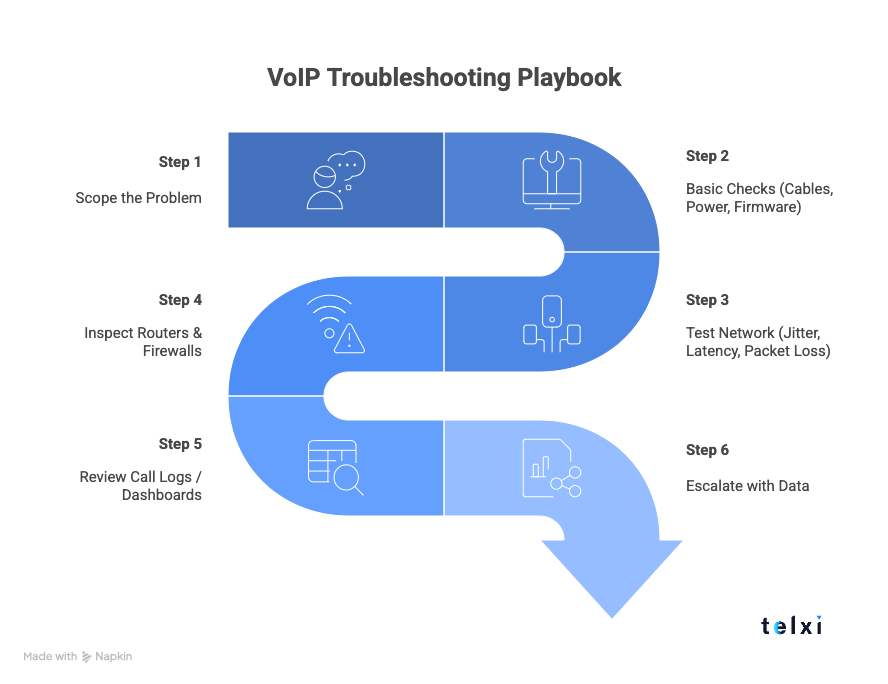
VoIP Troubleshooting Playbook

VoIP issues can be tricky, and that’s why successful troubleshooting requires a step-by-step approach that rules things out systematically.
VoIP Most Common Issues in 2026 5 - Telxi

Here’s a playbook to guide your team through the process.

Step 1: Scope the Problem

Before you start adjusting settings, you need to identify the nature and scope of the issue.

Knowing who is affected and when helps narrow the field quickly. Always start with a pattern: who, when, what type of call, and what’s happening (e.g., dropped call vs no audio).

Step 2: Basic Checks (Cables, Power, Firmware)

Many VoIP problems are most commonly caused by hardware or software that isn’t physically or logically up to date. Check if the devices are powered on, if the Ethernet cables are connected, and if there have been any recent configurations or reboots.

These physical and low-level checks can often fix what appears to be complex problems, especially with random disconnects or unregistered devices.

Step 3: Test Network (Jitter, Latency, Packet Loss)

Once hardware checks out, test the network. VoIP quality depends heavily on real-time data delivery.

Use tools like:

  • ping or traceroute for basic connectivity

  • MTR, PingPlotter, or VoIP Spear for VoIP-specific metrics

  • Built-in call stats in your VoIP dashboard (look for jitter/latency per call)

What to look for:

  • Jitter over 30ms can cause robotic or choppy audio

  • Latency over 150ms causes noticeable delay

  • Packet loss above 1% is unacceptable for voice calls

If these metrics are off, the issue lies with the network.

Step 4: Inspect Routers & Firewalls

Routers and firewalls often cause VoIP issues by blocking or altering SIP and RTP traffic. SIP ALG, a common default setting, frequently breaks call setup and should be disabled. Short UDP timeouts can drop active calls, and closed ports (like 5060 for SIP or 10000–20000 for RTP) may prevent audio from flowing.

Check that your firewall allows bidirectional SIP/RTP traffic and review any VoIP-specific settings or presets in your router that could improve compatibility.

Step 5: Review Call Logs / Dashboards

If the issue isn’t obvious, your VoIP platform’s dashboard or logs often hold the answer. Check the SIP registration status, the call logs for errors, the media stats, and the voicemail or routing logic.

Most good providers give per-call diagnostics. Use these to spot patterns, like which calls drop, which devices fail, or what routes have high latency.

Step 6: Escalate with Data

If you need to involve your VoIP provider, coming with solid evidence will speed things up dramatically.

What to collect:

  • Time and date of the issue (with time zone)

  • Type of issue (no audio, dropped call, ringing issue)

  • SIP logs (if using on-prem or softphones)

  • Screenshot or export of network test results

  • Device or user affected

This info helps support teams pinpoint issues faster, especially for intermittent or region-specific VoIP problems.

How Telxi Helps Reduce VoIP Problems

Here’s how Telxi helps prevent and solve many of the most common VoIP problems faced by businesses today:

  • Quality Routes – Telxi uses carrier-grade, premium voice routes that minimize latency, jitter, and packet loss, ensuring crystal-clear audio, even during peak traffic hours.

  • Native SIP Integration – Built with VoIP and SIP at its core, Telxi seamlessly connects with PBX systems and cloud platforms, reducing configuration errors and improving reliability.

  • Real-Time Monitoring Tools – Telxi provides detailed call logs, diagnostics, and live monitoring dashboards that make it easier to spot and resolve issues like dropped calls or codec mismatches.

  • Expert VoIP Support – With a team of SIP and voice specialists, Telxi offers fast, knowledgeable assistance when dealing with complex issues like NAT traversal, RTP failures, or provisioning errors.

FAQ from VoIP Forums & Users

  • This usually happens due to jitter, packet loss, or poor internet quality. Use wired connections, enable QoS, and check your router’s SIP settings.

  • This often indicates a SIP session timeout caused by NAT or firewall settings. Disabling SIP ALG and enabling keep-alives typically fixes it.

  • Check hunt group settings, registration status, and whether the phone app or device is sleeping or offline due to network changes or power issues.

  • These are usually caused by SIP scanners hitting open ports. Change default SIP ports and enable IP filtering to block unknown sources.